
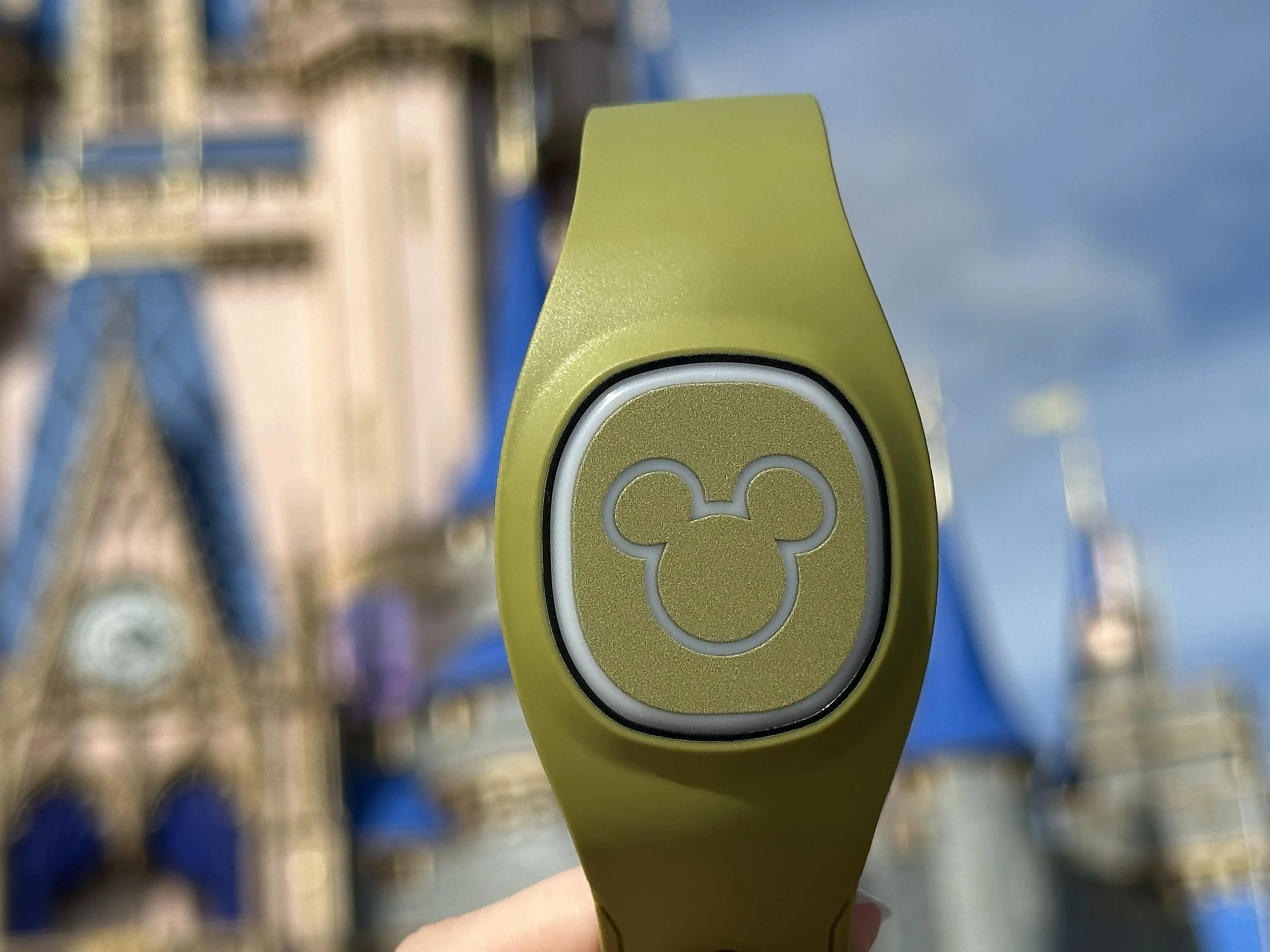
What Is a MagicBand+ and Do You Need One?
Simply put, a MagicBand+ is a bracelet that links to your ticket. It scans you in and interacts with the parks all around you.
MagicBands are not required, but I highly recommend them. I love mine because it keeps my hands free, and they’re just fun.
So technically, you don’t need one. But for the full Disney experience, you might want one. If you decide to skip it, you can use your phone or request a Key to the World card at your resort to cover the same functions.
So What Does a MagicBand+ Do?
- Scans you into the park.
- Scans you into all of your Lightning Lanes.
- Redeems your dining credits.
- Automatically captures attraction photos and videos for your Memory Maker.
- Scans your photos with a PhotoPass Photographer.
- Unlocks your Disney Resort room door.
- Scans to make purchases on food, beverages, and merchandise.
- Lights up and interacts with fireworks, attractions, and more throughout the parks.
- Lets you participate in Bounty Hunting in Batuu.
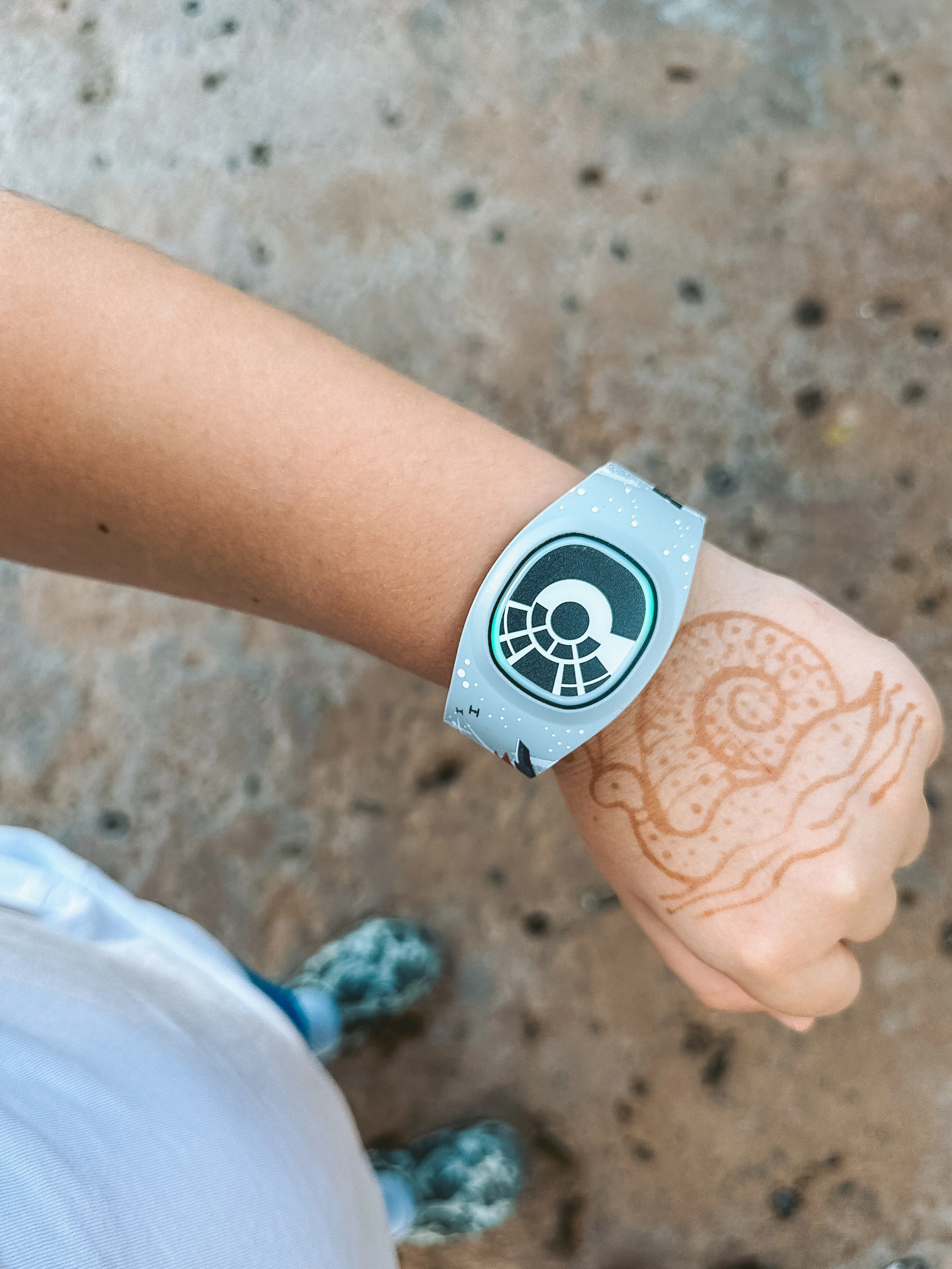
How to Order Your MagicBands
Heads up: MagicBands do not ship to Canada.
Log in to your account on an internet browser and follow along step by step. Just click through in order and you’ll have your bands ordered in no time.
-
1
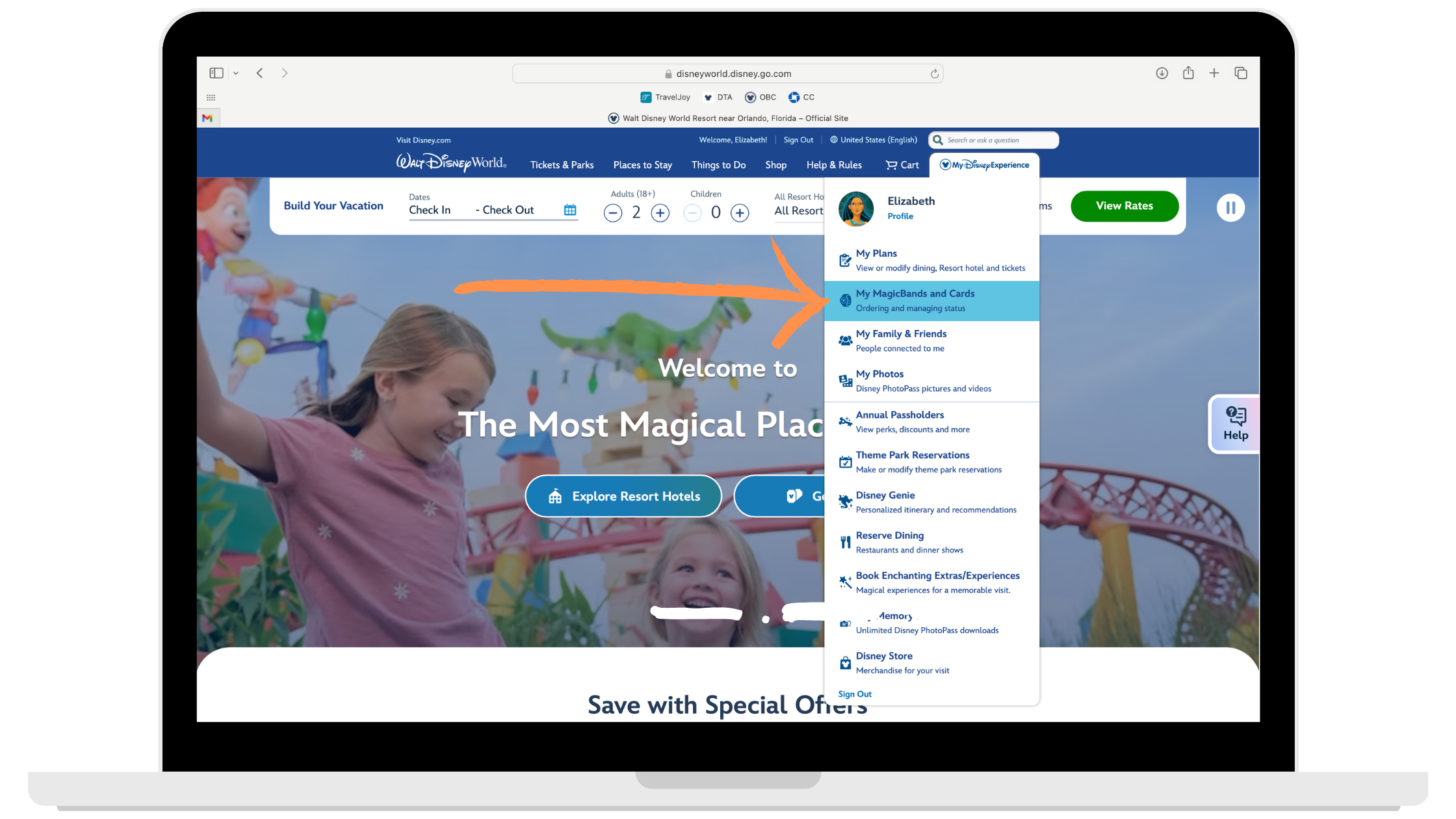
Log in to your account on an internet browser and select “My MagicBands & Cards.”
-
2
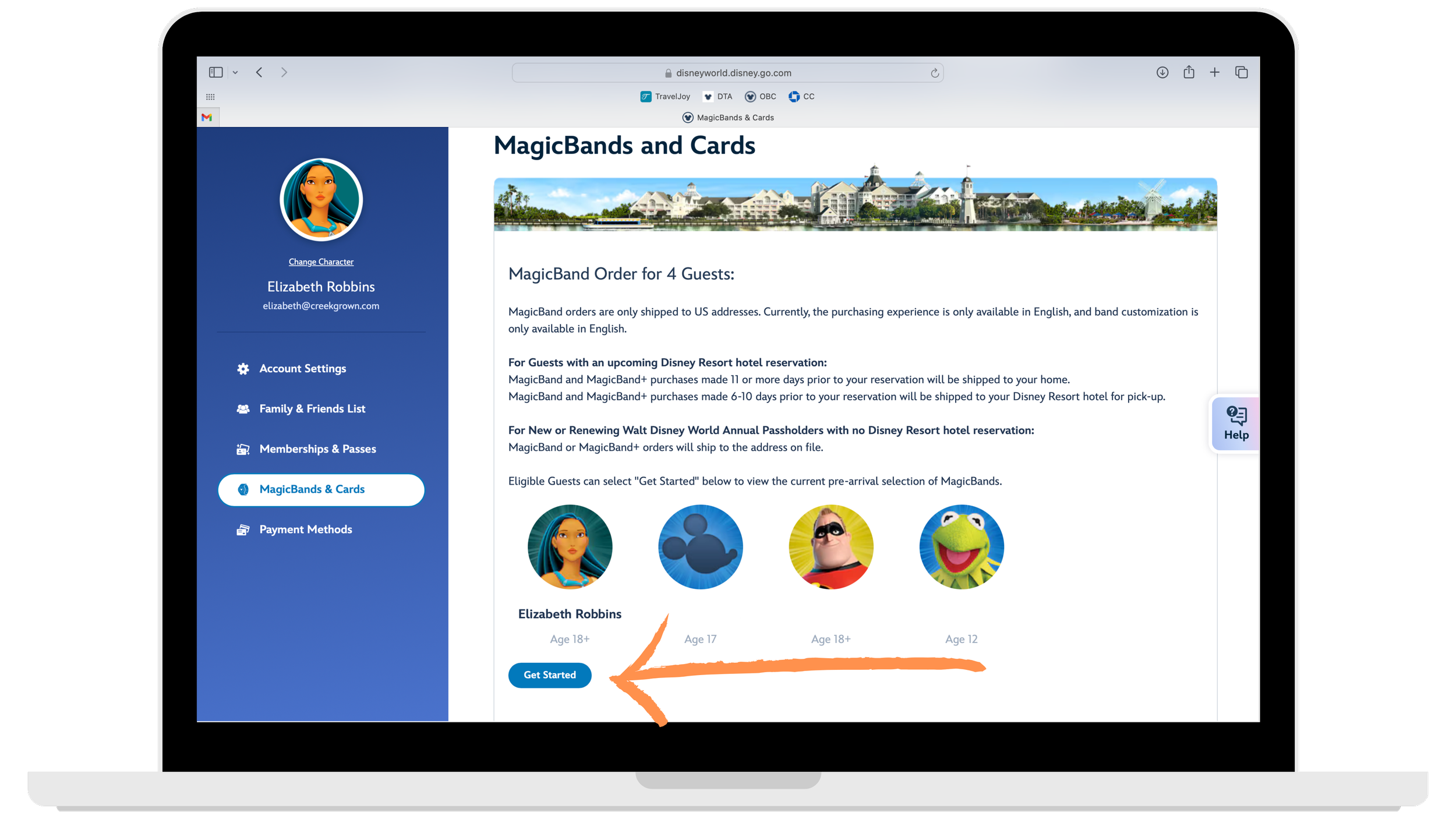
Select “Get Started.”
-
3
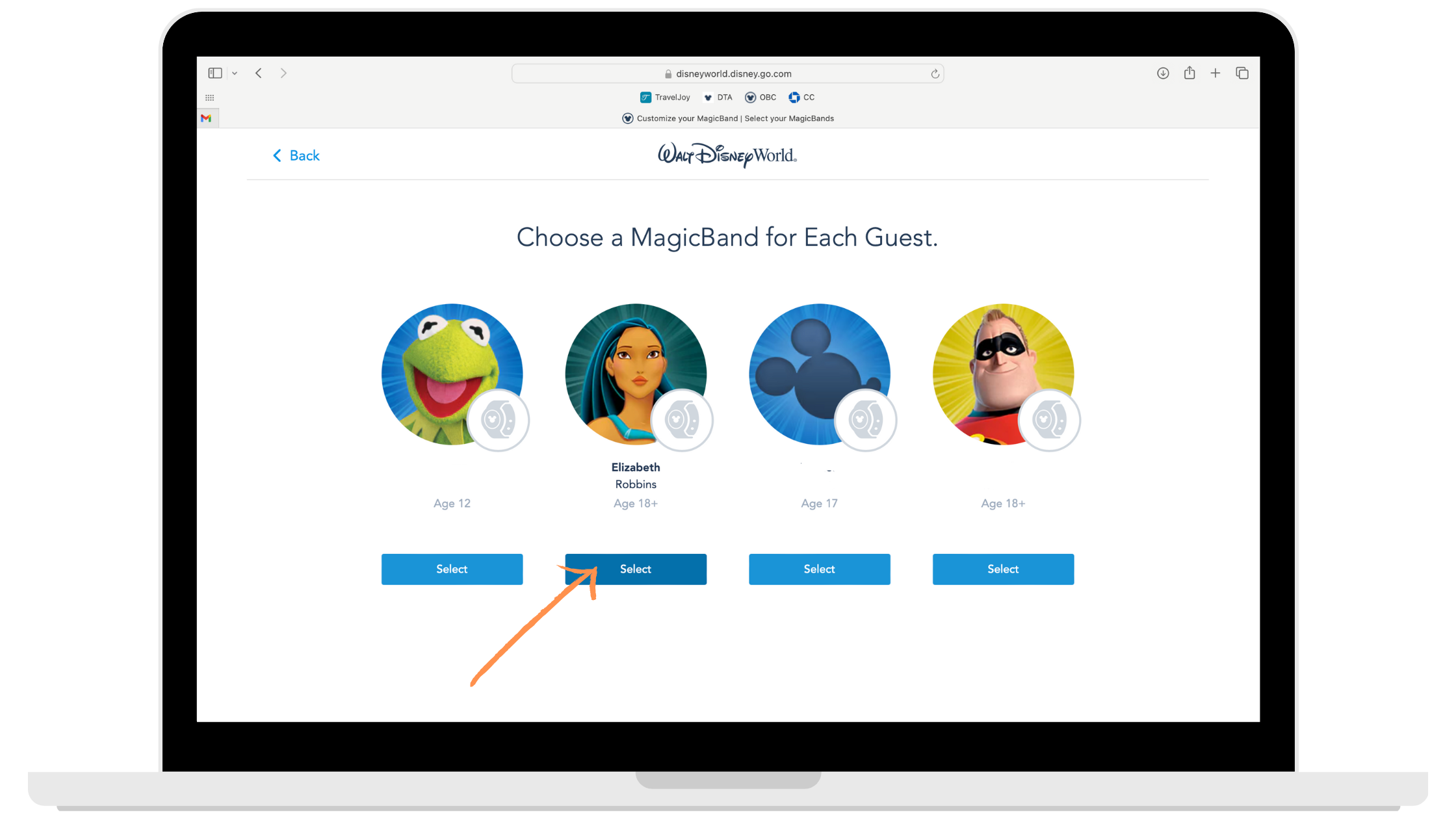
Select the person you want to buy a MagicBand for.
-
4
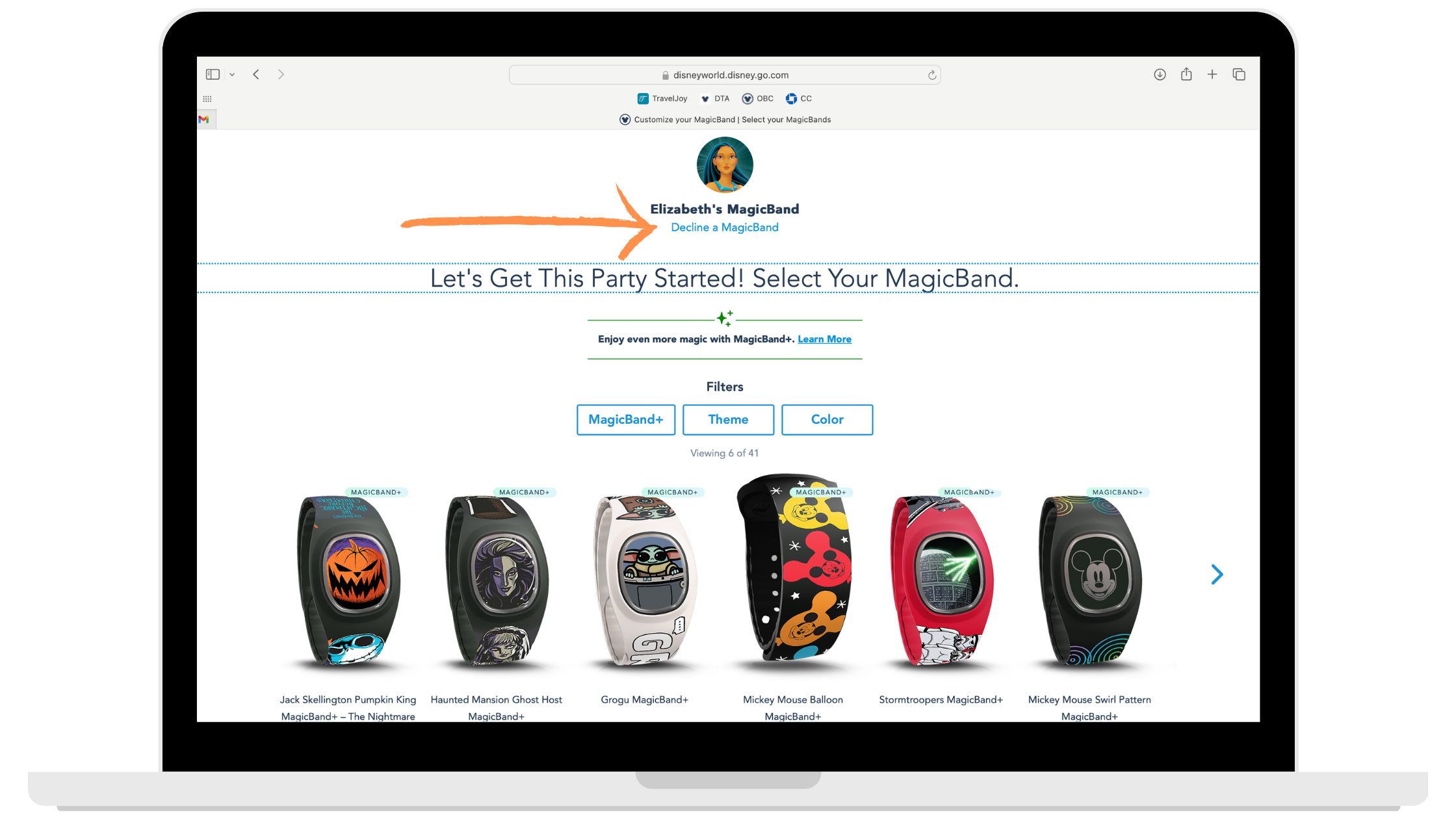
If someone in your group doesn’t want a MagicBand, select “Decline a MagicBand” under their name to keep moving through your order.
-
5
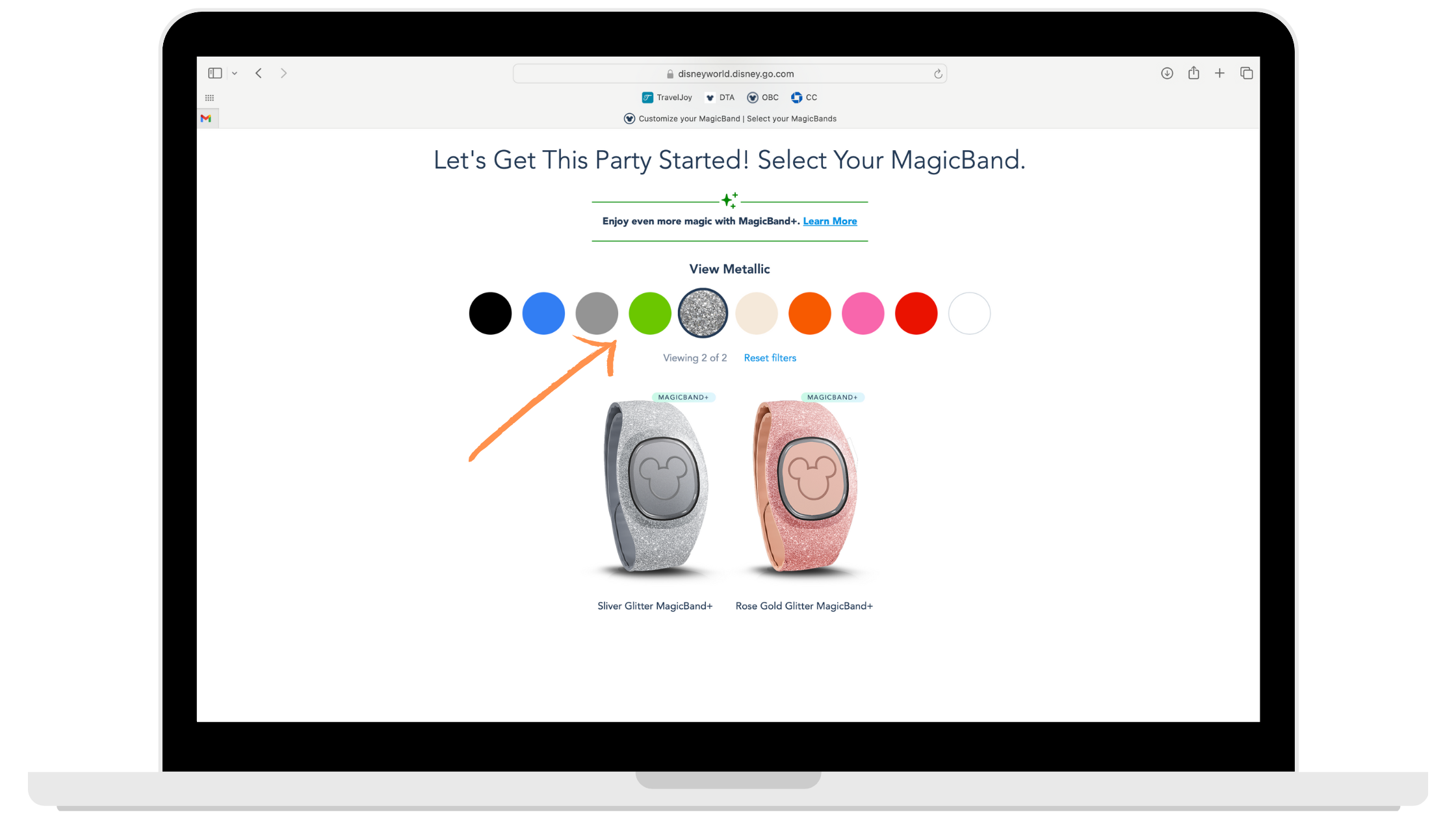
Organize by color or theme and scroll through your options.
-
6
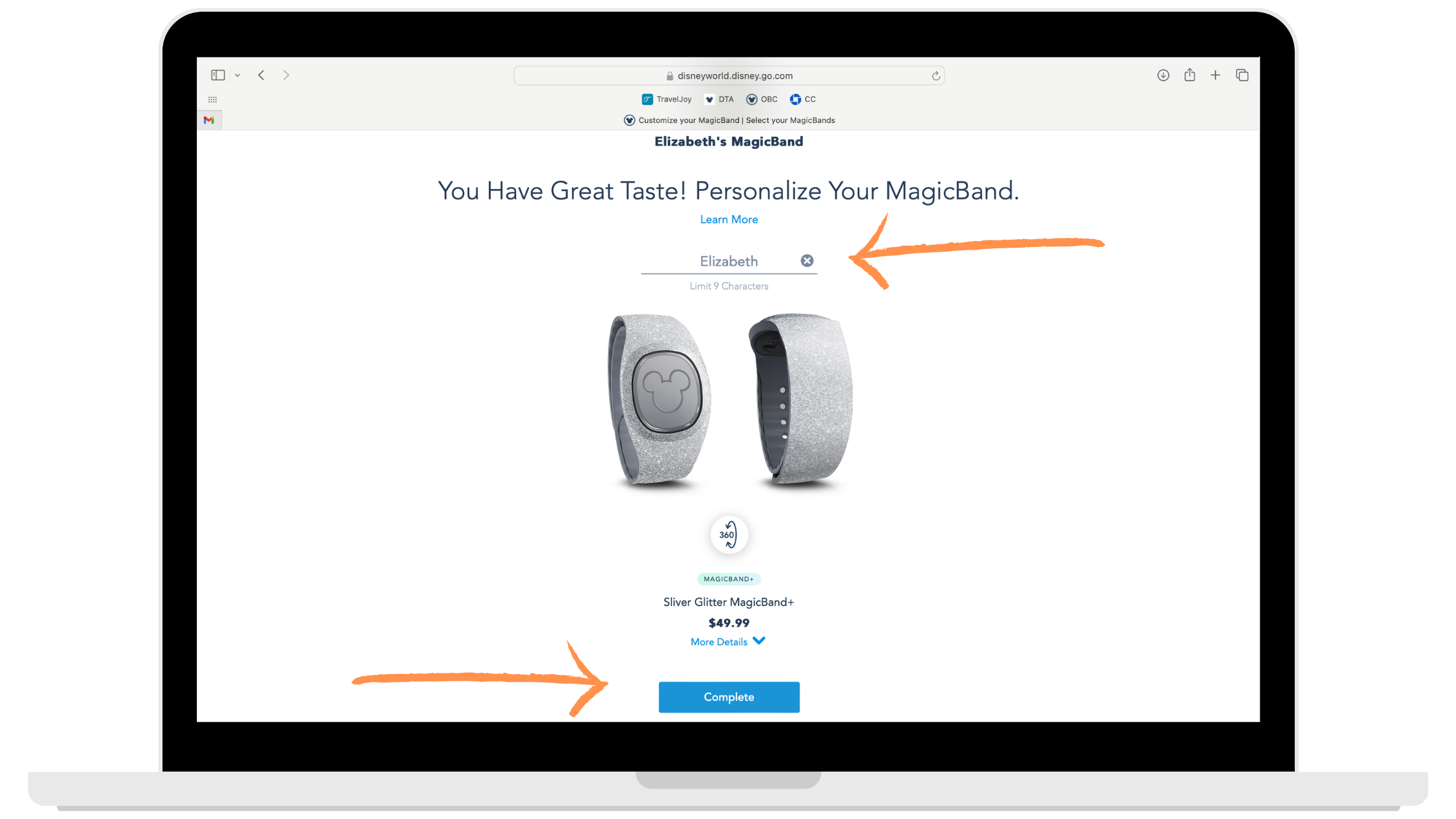
Select your band. Next, personalize it and click Complete.
-
7
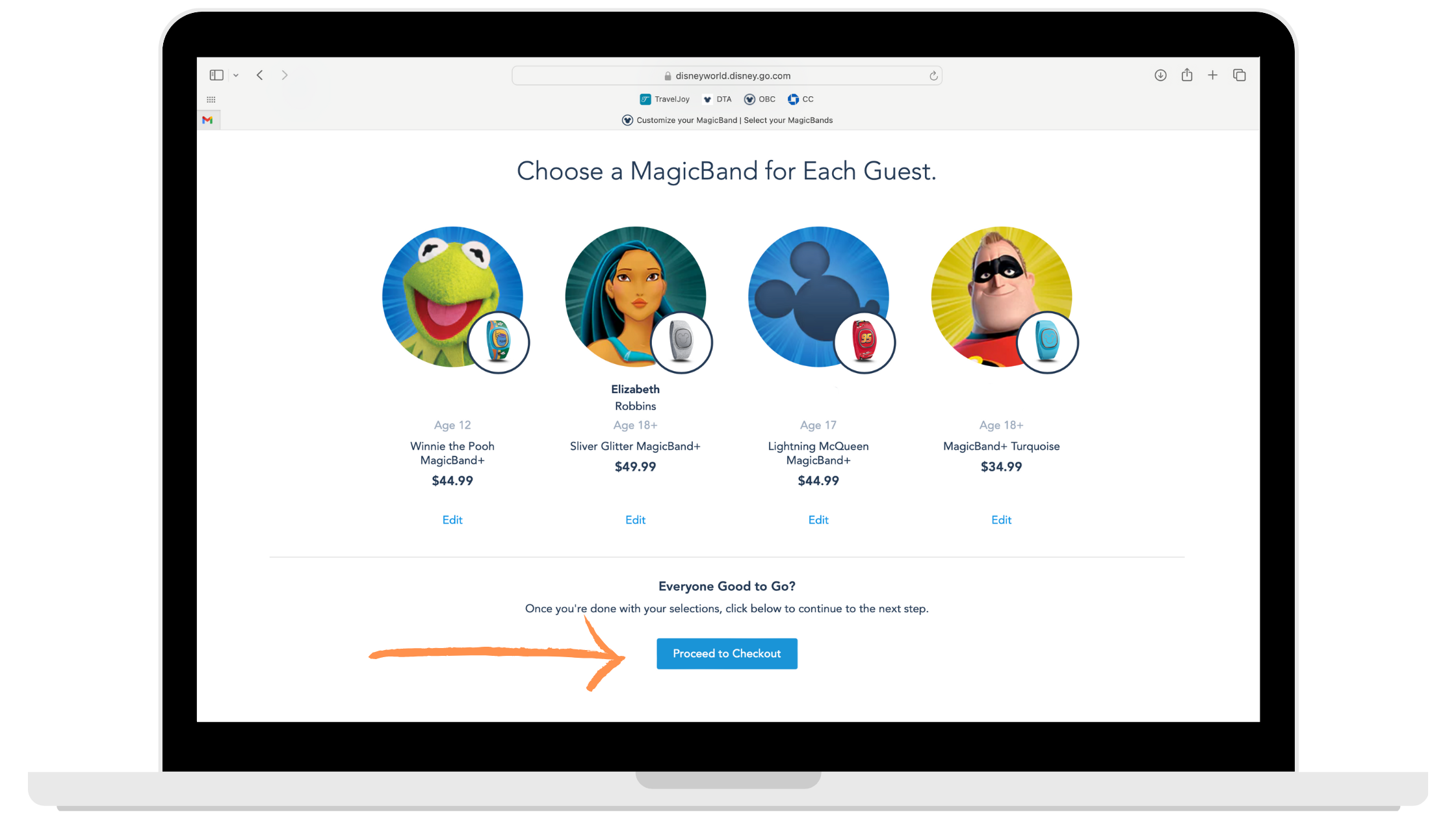
Once you’ve selected bands for everyone in your group, click “Proceed to Checkout.”
-
8
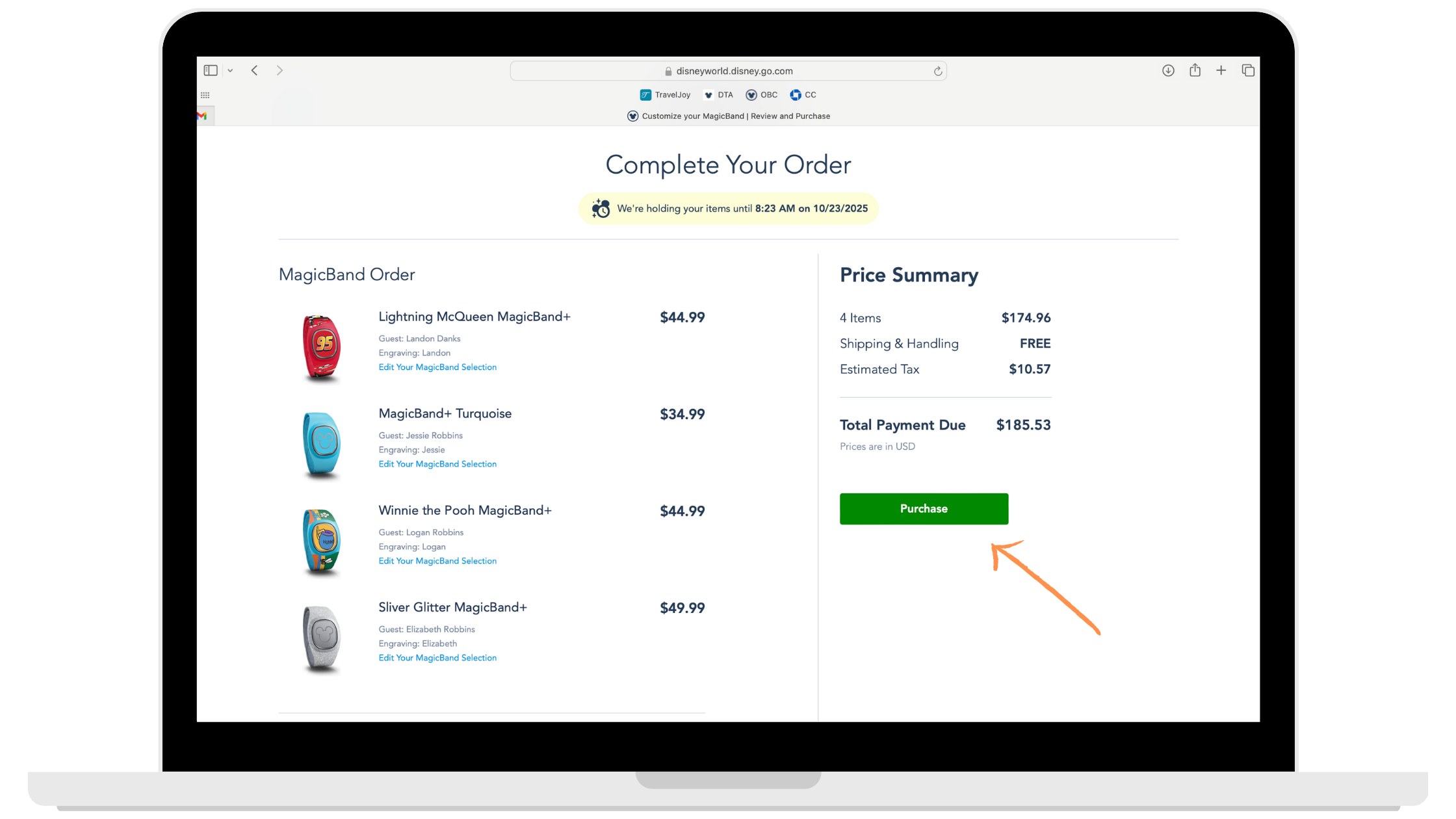
Finally, enter your shipping and payment information and complete your purchase.
Things You Should Know
- If you order online, order your MagicBands before your final payment is due so they have plenty of time to ship to your home.
- If you have a second resort reservation, keep scrolling down. You’ll find the second reservation below the first one.
- MagicBands ship as soon as you order them, and the styles available may change at any time.
- MagicBands do not ship to Canada.
- MagicBand+ vibrates and lights up throughout the day. If you don’t want it to, just don’t charge it. It’ll still scan you into the park and Lightning Lanes without a charge.
- If you don’t charge it, or your MagicBand dies, it’ll still work for scanning. It just won’t light up or vibrate.
However you decide to tap into the magic, I’ve got you covered. Reach out anytime if you have questions about your bands.